
Why Photos Get Blurry When You Make Them Bigger
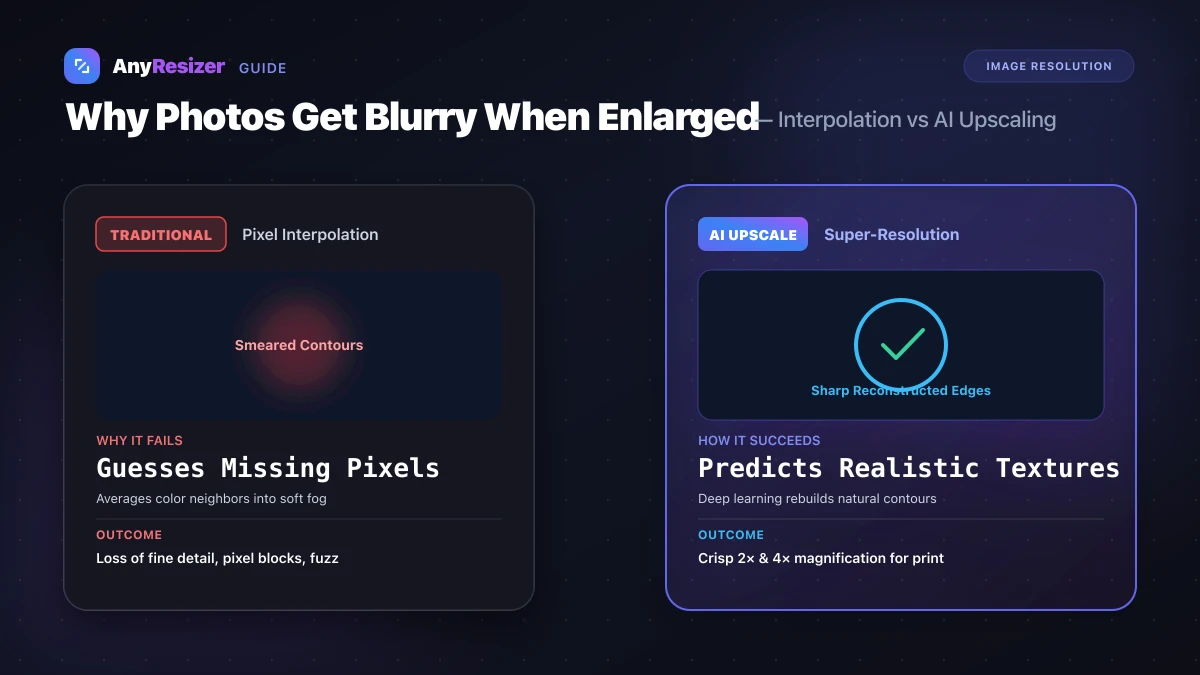
Everyone has tried enlarging a small photo, only to watch it transform into a pixelated, fuzzy mess.
This loss of clarity happens because photos are not infinite mathematical formulas. They are static grids composed of tiny colored tiles called pixels.
Here is the science behind why image enlargement causes blur, how traditional algorithms fail, and how to enlarge pictures cleanly.
The Grid Problem: Raster Images vs Vectors
Digital cameras, smartphones, and scanners produce raster images (like JPG, PNG, and WebP).
A photo measuring 800×600 pixels contains exactly 480,000 colored blocks. When you display that image at its original size, your screen paints each pixel directly onto one display diode.
If you double the dimensions to 1600×1200 pixels, your new image requires 1,920,000 pixels. That leaves 1,440,000 empty spaces that did not exist in the camera sensor:
Original 2×2 Pixel Grid:
[ Red  ] [ Blue ]
[ Green] [ Yellow]

Enlarged 4×4 Grid (Traditional Interpolation):
[ Red  ] [ ? ] [ ? ] [ Blue ]
[  ?   ] [ ? ] [ ? ] [  ?   ]
[ Green] [ ? ] [ ? ] [ Yellow]
Standard software must fill those empty question marks by averaging neighboring color values. This averaging process is called interpolation, and it inevitably softens sharp lines.
To see how pixel count dictates sharpness on paper and displays, read our complete guide on DPI vs PPI.
Comparing Resizing Algorithms
Not all enlargement methods deliver the same results. Here is how common techniques handle stretched pixels:
| Algorithm / Method | How It Calculates Pixels | Edge Clarity | Best Use Case |
|---|---|---|---|
| Nearest Neighbor | Duplicates nearest pixel directly | Jagged, blocky, stair-stepped | Retro pixel art & game sprites |
| Bilinear Interpolation | Averages 4 surrounding pixels | Soft edges, visible haze | Minor adjustments under 115% |
| Bicubic Resampling | Samples 16 neighboring pixels | Smoother gradients, less banding | Standard photo downscaling |
| AI Super-Resolution | Neural network predicts textures | Crisp lines and natural details | Enlarging photos 2× to 4× |
When you send enlarged images to a print service, interpolation blur becomes even more noticeable. Check our photo print resolution chart to find the minimum native pixels needed for physical frames.
How AI Upscaling Preserves Sharp Edges
Modern AI upscalers solve the blur problem differently than older photo editing programs.
Instead of mathematically blending adjacent colors into a gray smudge, a trained neural network inspects the context of the picture.
If the model recognizes an eyelash, hair strand, fabric weave, or brick line, it draws new, believable pixels matching that specific pattern. This produces photos that look like they were originally shot on a higher-resolution camera sensor.
3 Practical Steps to Enlarge a Photo Cleanly
When you need to magnify a photo for an art print, poster, or banner:
Check your starting resolution
Inspect your original file dimensions in pixels. Starting with a sharp source image always produces superior results.
Use an AI upscaler
Process your photo through a modern browser upscaler to boost dimensions by 2× or 4× without soft smearing.
Export in a lossless or high-quality format
Save the upscaled image as a high-quality JPG or PNG to avoid compression artifacts around freshly sharpened contours.
If you plan to package your newly sharpened photos into an official portfolio or application file, read our guide on how to convert images to PDF. You can also learn how resolution impacts file size in our breakdown on how many KB is a photo.
Frequently asked questions

The AnyResizer editorial team benchmarks image codecs, compression ratios, and web graphic formats using in-browser WASM and Canvas engines.
Related guides
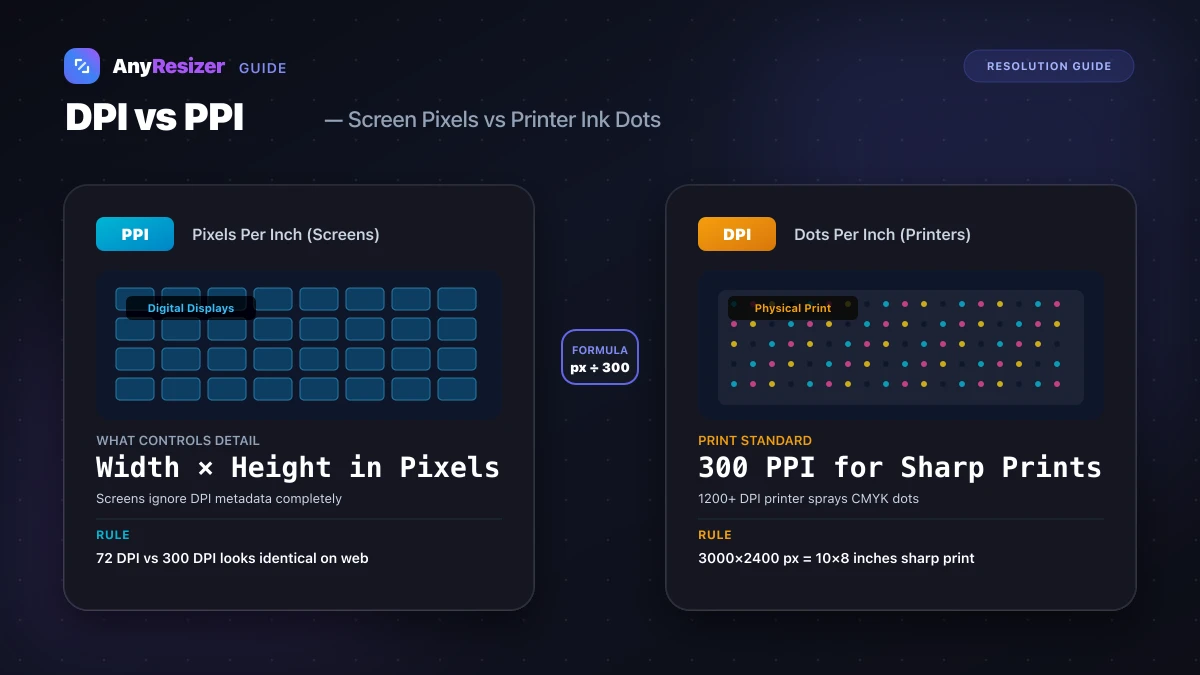
DPI vs PPI: What They Mean and When They Matter
Understand the difference between DPI and PPI, why DPI doesn't affect web images, and how to calculate the right resolution for sharp photo prints.
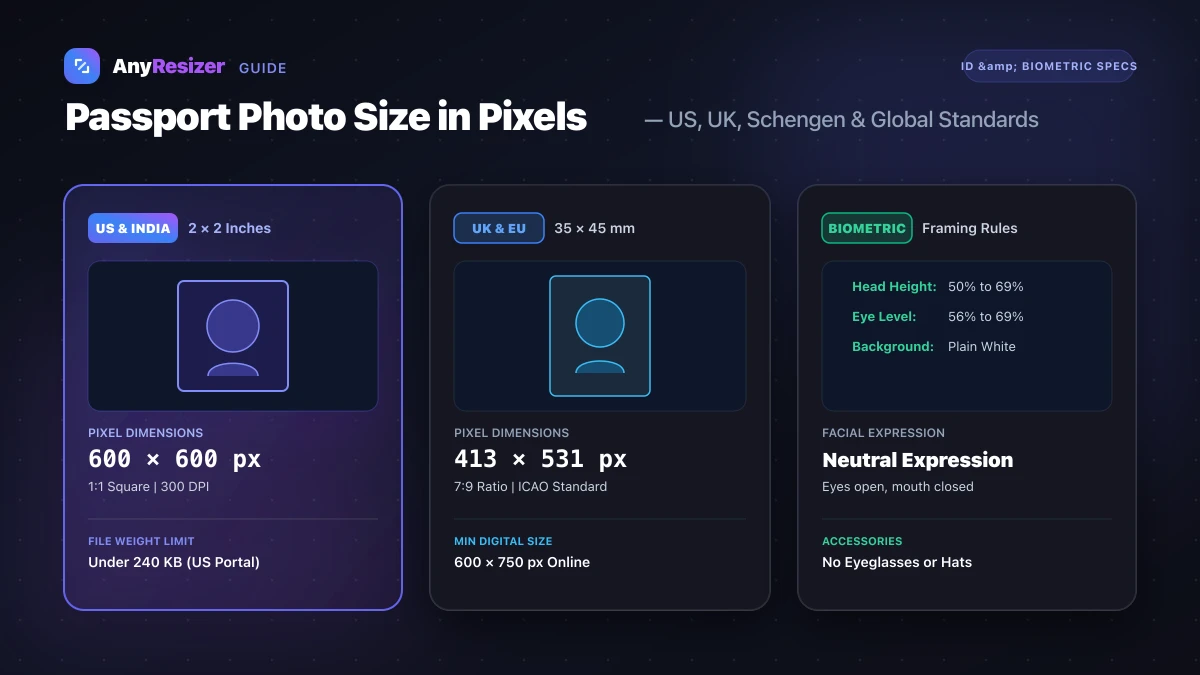
Passport and ID Photo Sizes in Pixels and KB (Official Guide)
Check official pixel dimensions, aspect ratios, head height rules, and KB limits for US, UK, Schengen, Canadian, and Indian passport photos.
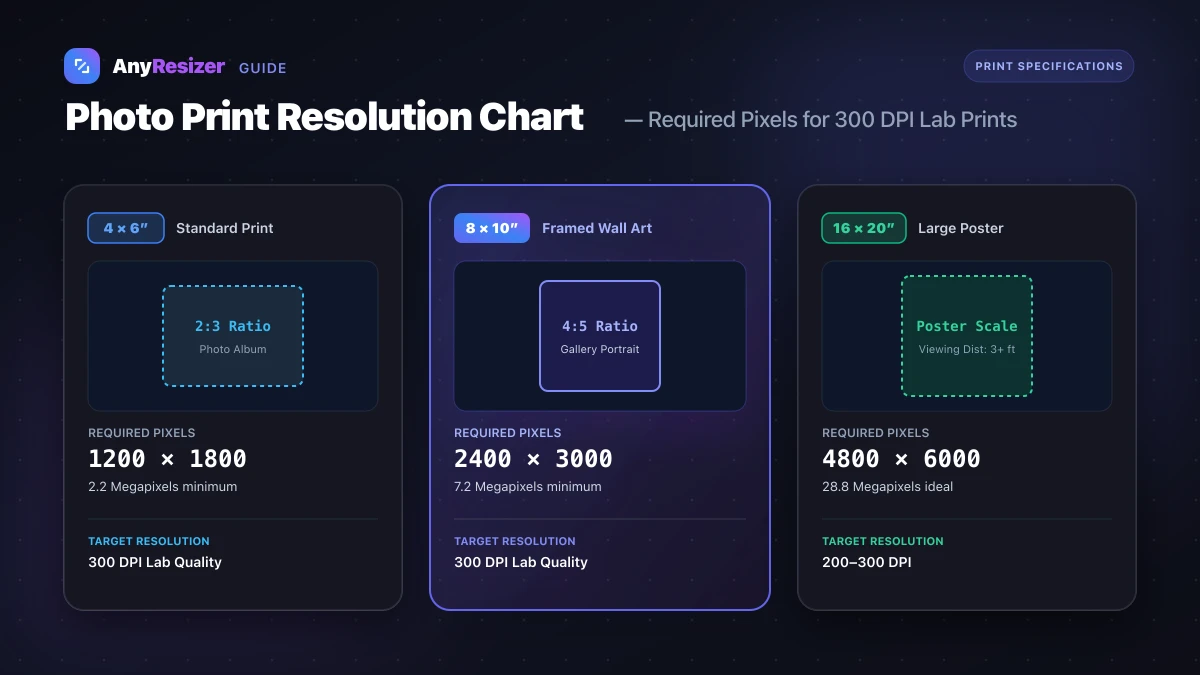
What Resolution Do You Need to Print a Photo? (Size Chart)
Find the exact pixel dimensions and DPI you need to print photos in 4x6, 5x7, 8x10, and poster sizes with crisp, lab-quality detail.