
What Resolution Do You Need to Print a Photo? (Size Chart)
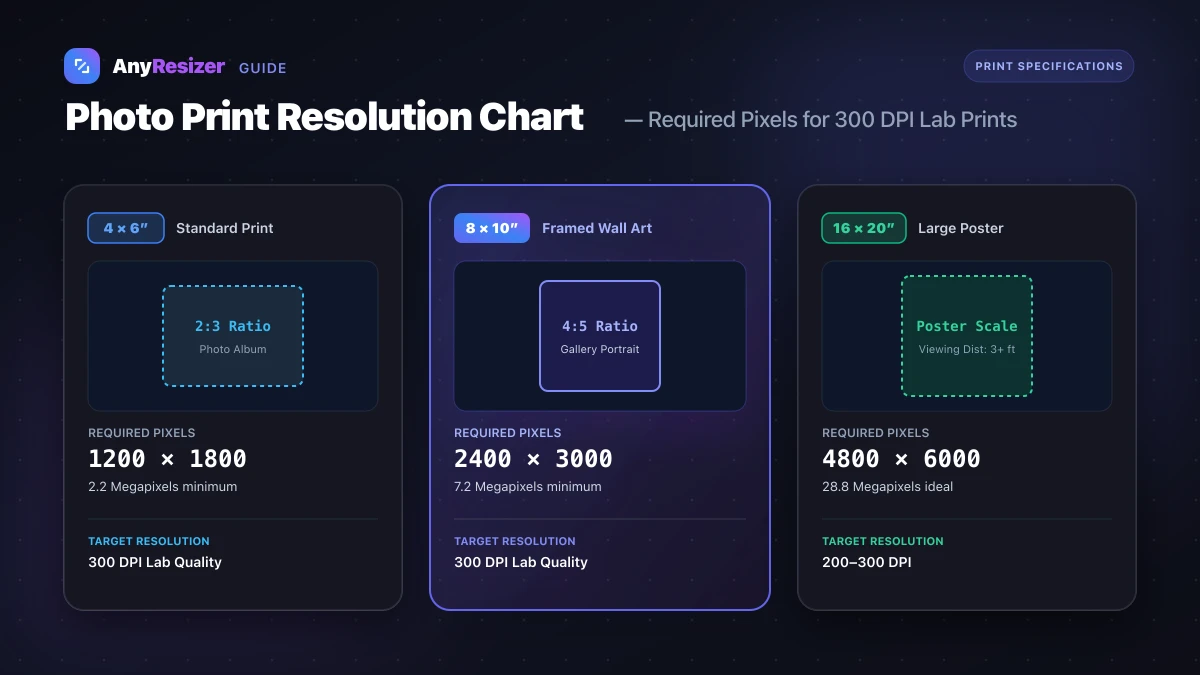
Sending a low-resolution image to a photo lab often leads to blurry prints and wasted paper.
Printers reproduce images by spraying tiny ink droplets onto paper. If your digital photo does not contain enough pixels, the print looks soft and pixelated.
This guide outlines the exact pixel dimensions needed for popular frame and poster sizes.
Photo Print Resolution Chart
Commercial print labs recommend 300 DPI (dots per inch) for hand-held photos. For larger wall art viewed from several feet away, 150 to 200 DPI produces sharp visual results.
| Print Size (Inches) | Best Use Case | Minimum Pixels (150–200 DPI) | Ideal Pixels (300 DPI) | Minimum Camera Megapixels |
|---|---|---|---|---|
| 4 × 6 | Standard photo album | 800 × 1200 | 1200 × 1800 | 2.2 MP |
| 5 × 7 | Desk frame / greeting card | 1000 × 1400 | 1500 × 2100 | 3.2 MP |
| 8 × 10 | Wall frame / portrait | 1600 × 2000 | 2400 × 3000 | 7.2 MP |
| 11 × 14 | Gallery wall print | 1650 × 2100 | 3300 × 4200 | 13.9 MP |
| 16 × 20 | Large wall poster | 2400 × 3000 | 4800 × 6000 | 28.8 MP |
| 20 × 30 | Event banner / fine art | 3000 × 4500 | 6000 × 9000 | 54.0 MP |
| 24 × 36 | Movie poster / exhibition | 2400 × 3600 (100 DPI) | 7200 × 10800 | 77.8 MP |
To learn how dots per inch relate to digital display pixels, read our complete guide on DPI vs PPI. Higher megapixel images also produce heavier files on disk; see our guide on how many KB is a photo to estimate storage requirements.
How Viewing Distance Affects Print Quality
You do not need 300 DPI for every print size. Human visual acuity depends on how far away your eyes are from the paper.
When holding a 4×6 photo in your hand at 12 inches, your eyes can distinguish individual details down to roughly 300 dots per inch.
When you hang a 24×36 inch poster on your living room wall, you naturally view it from four to six feet away. At that distance, your eyes cannot tell the difference between 150 DPI and 300 DPI.
How to Check If Your Photo Can Print Clearly
Before placing an order with a print service, verify the dimensions of your image:
- Right-click your image file on your computer and select Properties (Windows) or Get Info (Mac).
- Look for the dimensions listed in pixels (for instance,
4032 × 3024). - Divide each dimension by 300 to discover the maximum high-quality print size in inches.
A photo measuring 4032×3024 pixels divided by 300 equals 13.4×10.0 inches. That means you can print an 8×10 or 11×14 photo at exceptional quality.
If you have iPhone photos stored in Apple's compact format, check our guide on how to open and convert HEIC files before sending them to a local print kiosk.
What to Do If Your Image Is Too Small
If your image has fewer pixels than your target frame size, you have two practical choices:
- Upscale the image: Use an AI upscaler to reconstruct missing pixel detail before printing.
- Resize to exact print dimensions: Crop and resize your image to match the precise aspect ratio of your photo paper.
Cropping beforehand prevents the print lab machine from slicing off heads or text automatically.
Check your target frame size
Identify whether your frame is 4×6, 5×7, or 8×10 inches.
Resize your photo to matching pixels
Enter the pixel dimensions from the chart above into the resizer tool.
Save and send to print
Export a full-quality JPG or PNG file ready for your print service.
Before uploading your files, make sure you choose the right file format for your printer. Read our JPG vs PNG vs WebP comparison to protect image clarity.
Frequently asked questions

The AnyResizer editorial team benchmarks image codecs, compression ratios, and web graphic formats using in-browser WASM and Canvas engines.
Related guides
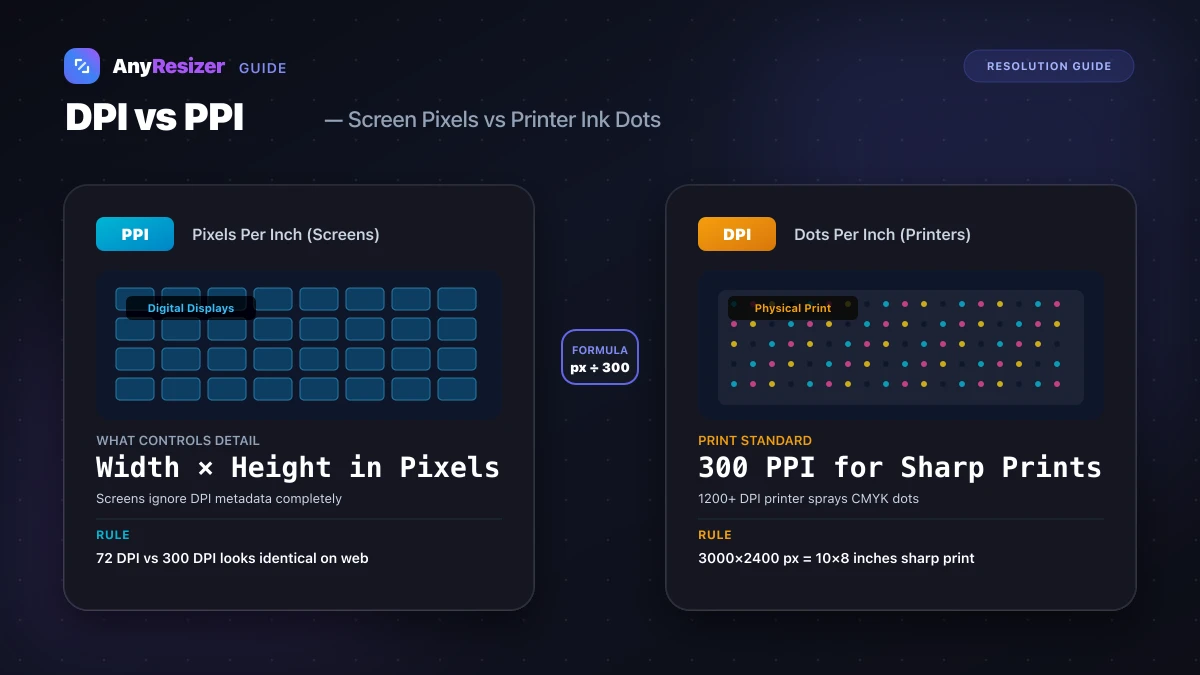
DPI vs PPI: What They Mean and When They Matter
Understand the difference between DPI and PPI, why DPI doesn't affect web images, and how to calculate the right resolution for sharp photo prints.
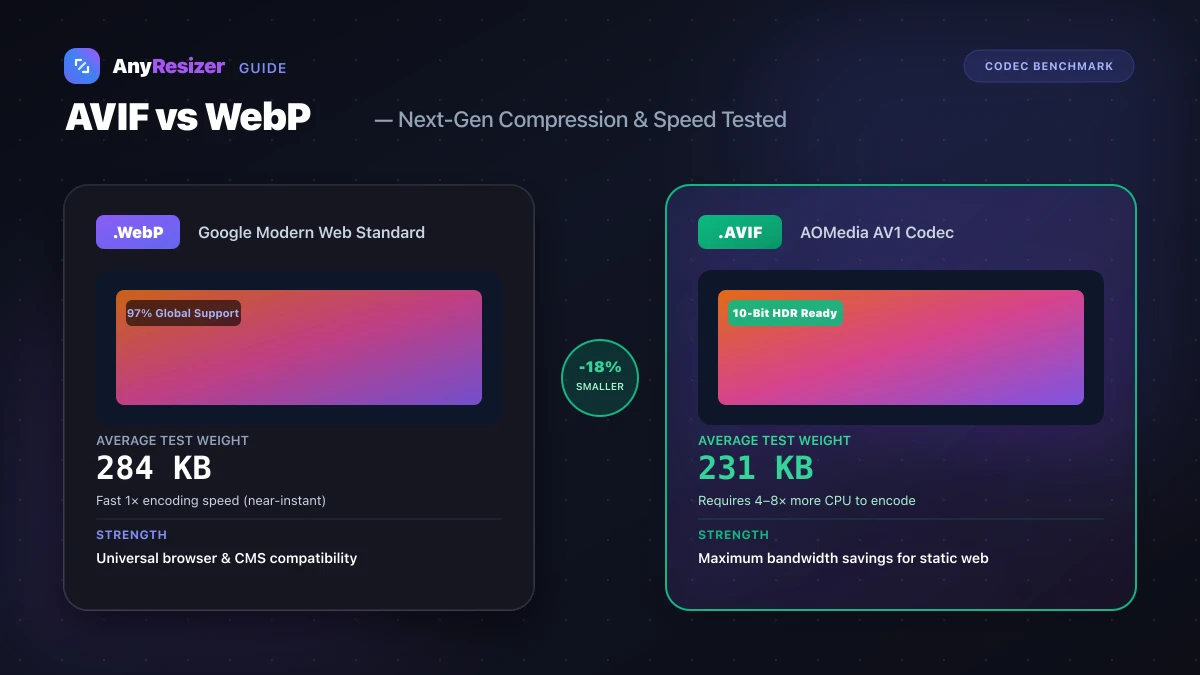
AVIF vs WebP: File Size and Browser Support Tested
Compare AVIF and WebP for image compression, decoding speed, and browser support. See measured file-size test results across 5 photos.
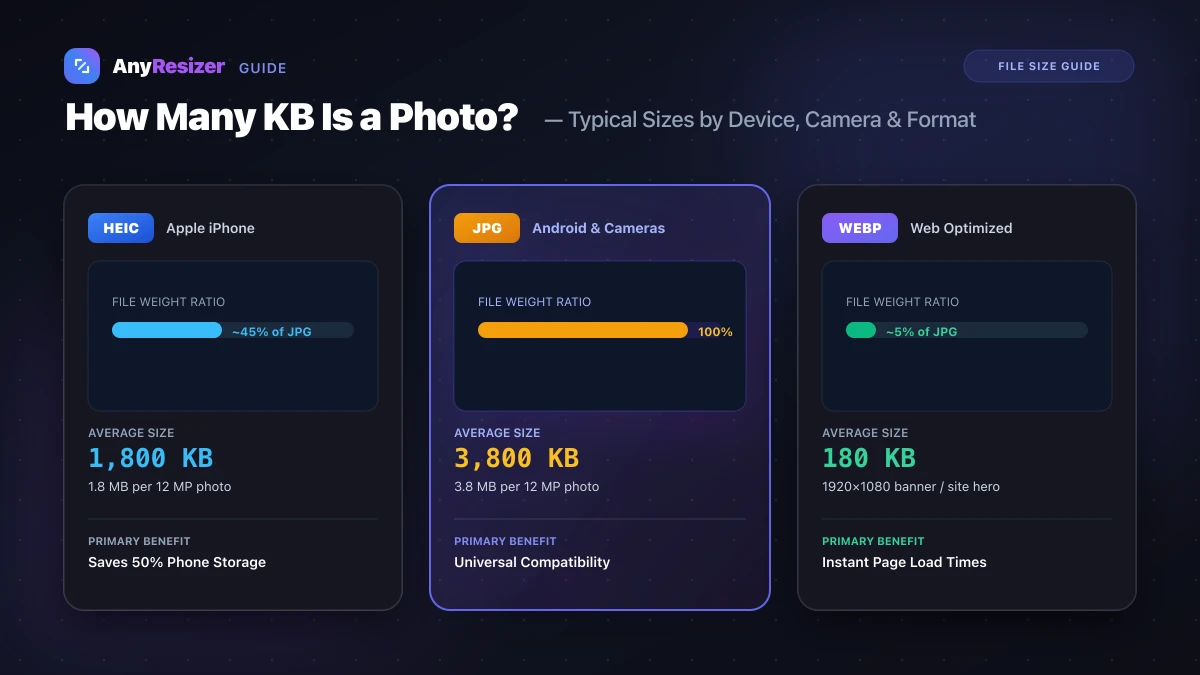
How Many KB Is a Photo? Typical File Sizes by Phone and Format
Learn the average file size of photos in KB and MB across iPhones, Androids, DSLRs, and web formats, with realistic benchmarks and size reduction tips.