
How to Convert Images to PDF Without Losing Quality
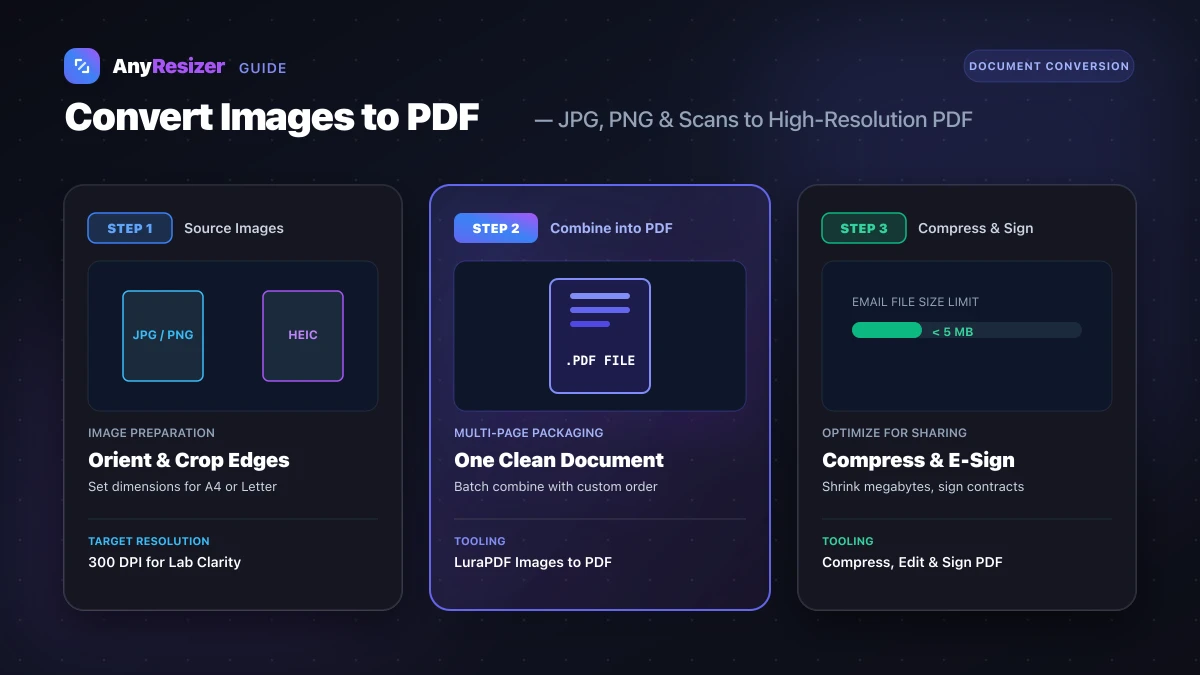
Sending a client or government agency ten loose image attachments often leads to missing pages or rejected applications.
Converting your pictures into a single PDF preserves your page order, locks layout formatting across devices, and makes viewing straightforward.
Here is how to prepare your images, package them into a document, and keep text and photo details razor-sharp.
Ideal Image Dimensions for PDF Pages
When an image is inserted into a PDF page, the document viewer scales the image to match the page canvas.
If your image resolution is too low, the page will appear fuzzy or pixelated.
| Document Paper Size | Target DPI / PPI | Pixel Dimensions (Width × Height) | Best Purpose |
|---|---|---|---|
| US Letter (Portrait) | 300 DPI | 2550 × 3300 px | North American business forms & resumes |
| US Letter (Draft) | 150 DPI | 1275 × 1650 px | Fast web downloads & screen reading |
| A4 Standard (Portrait) | 300 DPI | 2480 × 3508 px | International contracts & formal documents |
| A4 Standard (Draft) | 150 DPI | 1240 × 1754 px | Email attachments & digital archives |
To understand how pixel density connects to paper sizes, read our complete guide on DPI vs PPI and our photo print resolution chart.
Step 1: Prepare and Clean Your Source Images
Before converting images to a document format, review your source files:
- Check orientation: Rotate any upside-down phone photos so every page faces the correct way. Learn why photos turn sideways when uploaded to fix EXIF errors.
- Crop unnecessary edges: Trim away desk surfaces or messy backgrounds around scanned receipts.
- Convert modern phone formats: If your photos were taken on an iPhone, check our guide on what a HEIC file is to learn how modern containers work.
You can convert exotic photo formats into standard JPG or PNG images before assembling your document:
Step 2: Convert Your Images into a PDF
Once your images are ready, you can convert them directly in your web browser without installing heavy software.
For a single photo, scan, or certificate, use LuraPDF JPG to PDF to create a clean, single-page PDF document.
When you have multiple receipts, portfolio samples, or contract pages that belong together, use LuraPDF Images to PDF. This tool lets you drop several JPG, PNG, or WebP images at once, rearrange page order, and generate one combined multi-page document.
Select your images
Drop your prepared JPG or PNG pictures into the browser converter.
Arrange page sequence
Drag and drop thumbnails to reorder pages in chronological sequence.
Download your combined PDF
Generate and save your assembled document with preserved color and resolution.
Step 3: Compress Image-Heavy PDF Files
High-resolution smartphone photos often produce PDFs that exceed 20 MB or 40 MB.
Most email providers restrict attachments to 20 MB or 25 MB, while government application forms frequently cap uploads at 5 MB or even 2 MB.
If your converted document is too heavy, run it through LuraPDF Compress PDF. The compression engine downsamples high-density image blocks while keeping fonts and line art sharp.
To learn more about average file sizes across smartphones and formats, see our breakdown on how many KB is a photo.
Step 4: Add Signatures and Annotations
If your converted PDF represents an agreement, application, or tax document, you may need to add dates, text notes, or legal signatures.
- Electronic signatures: Use LuraPDF Sign PDF to draw or type an official digital signature onto any document page.
- Page edits and markups: Use LuraPDF Edit PDF to reorder pages, highlight critical clauses, or insert supplementary text blocks.
Choosing the right format before creating documents prevents bloated files. Read our JPG vs PNG vs WebP comparison to see how format choices impact digital quality.
Frequently asked questions

The AnyResizer editorial team benchmarks image codecs, compression ratios, and web graphic formats using in-browser WASM and Canvas engines.
Related guides
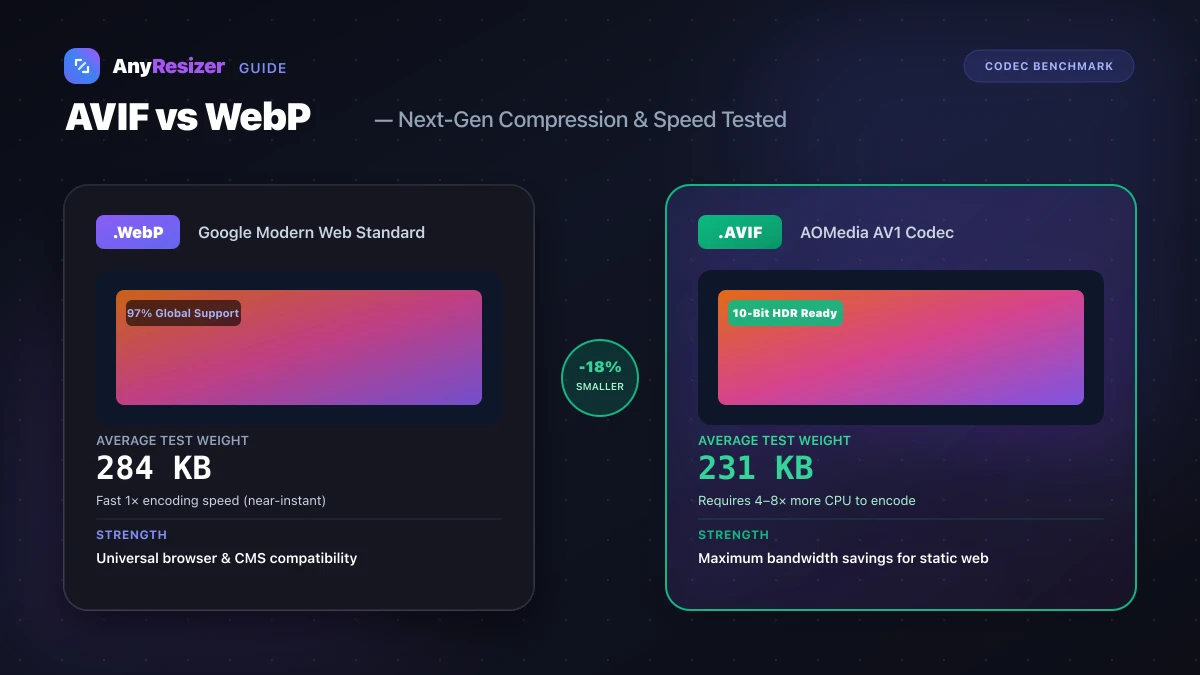
AVIF vs WebP: File Size and Browser Support Tested
Compare AVIF and WebP for image compression, decoding speed, and browser support. See measured file-size test results across 5 photos.
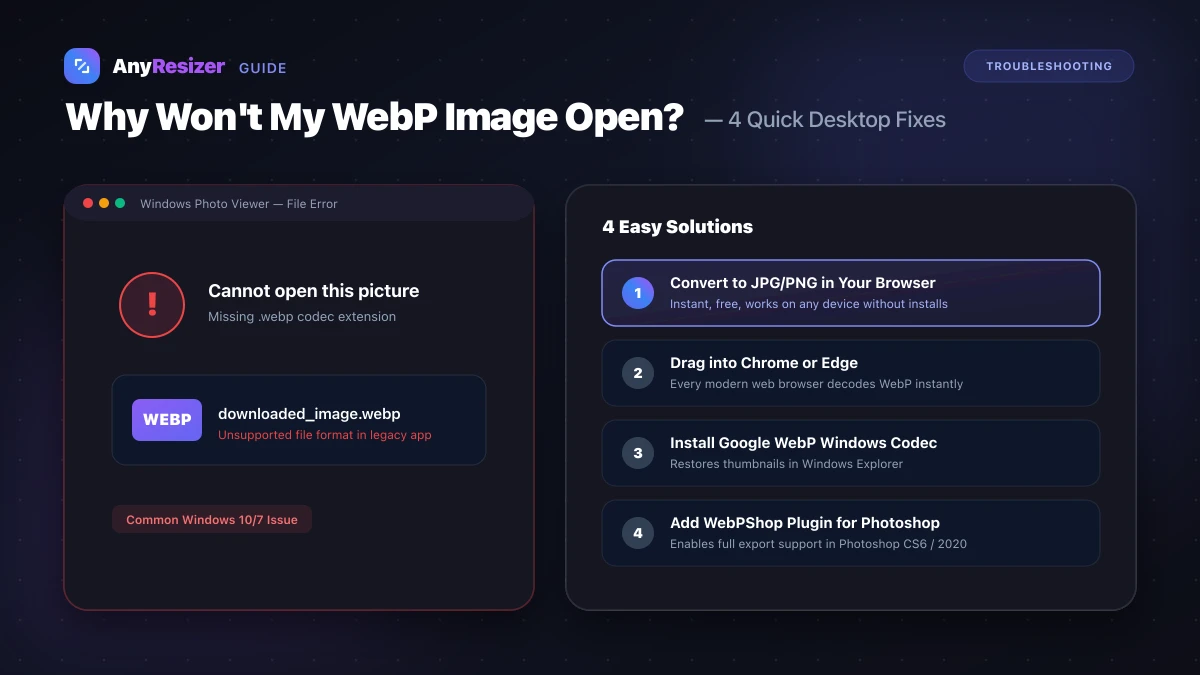
Why Won't My WebP Image Open? 4 Easy Fixes
Learn why your computer or image editor can't open WebP files, and 4 quick fixes to view or convert WebP images back into JPG or PNG.
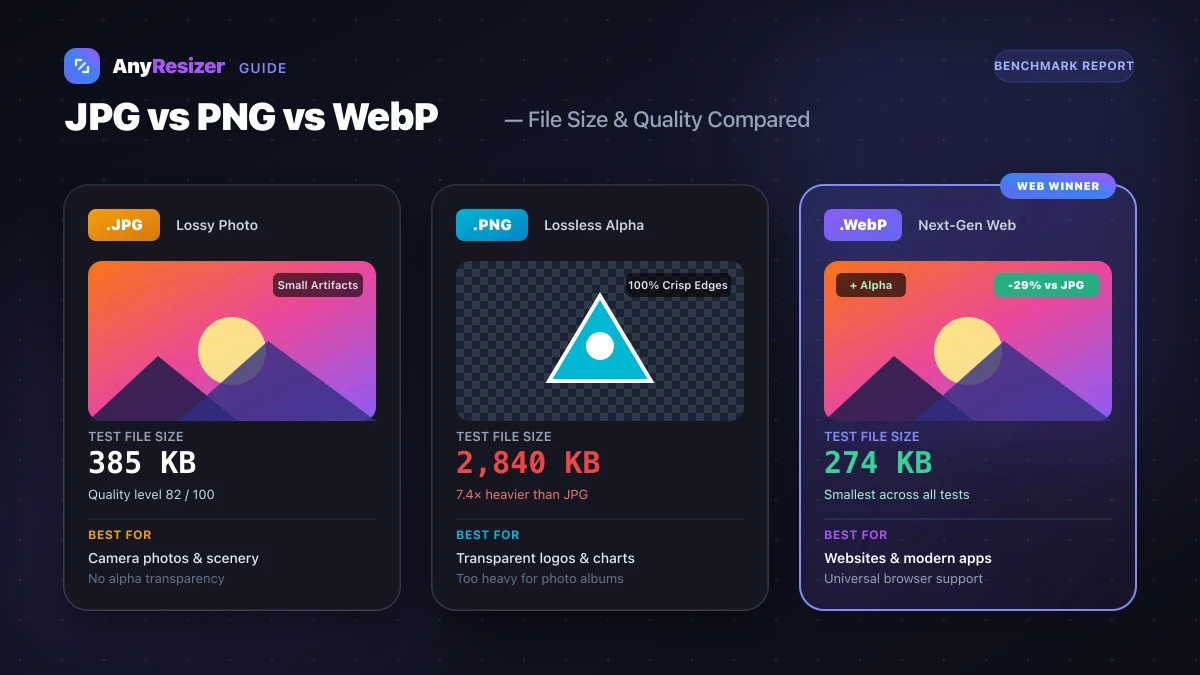
JPG vs PNG vs WebP: Which Image Format Should You Use?
Compare JPG, PNG, and WebP for photos, transparency, and website speed. See real test results and size benchmarks for all three formats.