
Why Won't My WebP Image Open? 4 Easy Fixes
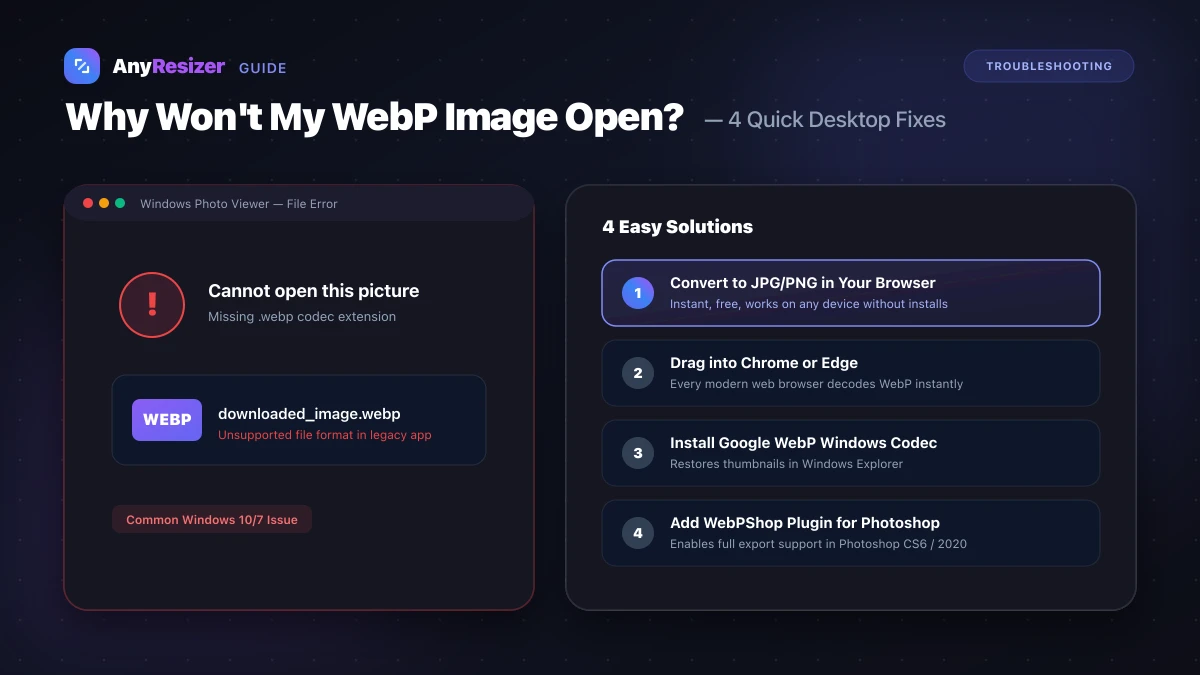
You downloaded an image from the web, but when you double-click it, Windows Photos displays an error or Photoshop refuses to import it.
Because WebP is a web-centric format, older desktop programs and operating systems do not support it out of the box. Here is why the error happens and four practical ways to open your images.
Why Your App Cannot Open WebP
WebP is developed by Google to speed up web browsing. While every web browser decodes WebP easily, desktop operating systems adopted the format much later:
- Windows Photo Viewer (Windows 7 and early Windows 10) lacks native WebP decoding
- Photoshop versions released before 2022 cannot open
.webpfiles without a plugin - Older versions of Microsoft Office and word processors reject WebP attachments
- Many government upload forms and job application sites accept JPG and PNG only
This is similar to the issue iPhone owners experience with Apple's format, which we explain in our guide on what a HEIC file is.
Software Compatibility Matrix
Here is how popular desktop software handles .webp files today:
| Software Program | Native Support | Workaround |
|---|---|---|
| Google Chrome & Microsoft Edge | Supported | Drag and drop file into browser window |
| Windows 11 Photos | Supported | Update Photos app via Microsoft Store |
| Windows Photo Viewer (Legacy) | Not Supported | Convert to JPG or install Webp Codec |
| Adobe Photoshop 23.2+ | Supported | Fully native read and write |
| Adobe Photoshop CS6 / 2020 | Not Supported | Install Google WebPShop plugin |
| Microsoft Word 2019 or older | Not Supported | Convert to PNG to preserve quality |
Fix 1: Convert WebP to JPG or PNG Online
The fastest fix is converting the file directly in your browser. This requires no software installation and works on any operating system.
Drop your WebP file
Upload one or multiple .webp images into the converter.
Choose your target format
Choose JPG for photos, or PNG if your image has a transparent background.
Save and open anywhere
Download the converted file and open it in any desktop program.
Fix 2: Open the Image in Any Web Browser
Because every web browser supports WebP, your browser can act as a built-in image viewer:
- Open your web browser (Chrome, Firefox, Safari, or Edge).
- Drag the
.webpfile from your desktop directly into a new browser tab. - The image will render instantly in full resolution.
You can press Ctrl + P (or Cmd + P on Mac) to print or save the displayed image as a PDF.
Fix 3: Install the Official WebP Codec on Windows
If you frequently download WebP images and want Windows to generate thumbnails and open them in Windows Photo Viewer:
- Download the WebP Codec for Windows installer from Google's official developer portal.
- Run the setup wizard to install the codec.
- Restart your computer. Windows Explorer will now display image thumbnails for all
.webpfiles.
Fix 4: Install the WebPShop Plugin for Photoshop
If you use Photoshop 2021 or older:
- Download the free
WebPShop.pluginfrom Google's GitHub repository. - Place the file inside your Photoshop
Plug-insfolder. - Restart Photoshop. You can now open, edit, and export WebP files like standard PSD or JPG documents.
To learn more about how format choices affect file size and sharpness, explore our JPG vs PNG vs WebP comparison guide and our head-to-head breakdown of AVIF vs WebP. If you plan to resize or print your converted images, check our guide on DPI vs PPI for crisp results.
Frequently asked questions

The AnyResizer editorial team benchmarks image codecs, compression ratios, and web graphic formats using in-browser WASM and Canvas engines.
Related guides
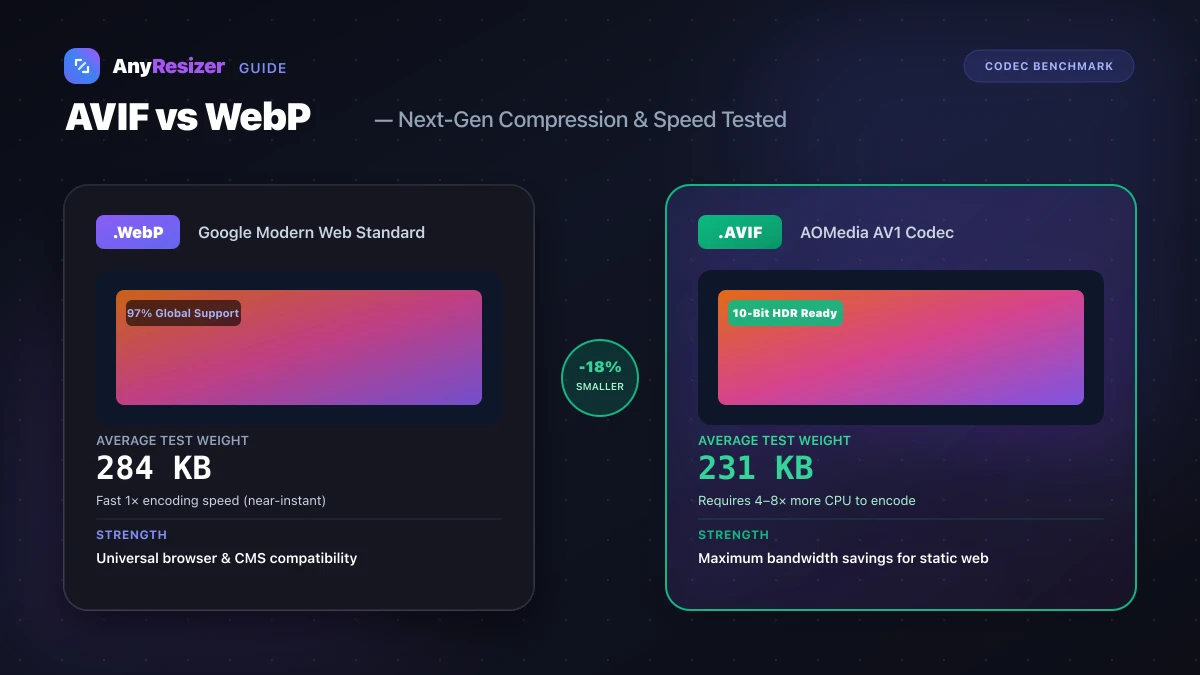
AVIF vs WebP: File Size and Browser Support Tested
Compare AVIF and WebP for image compression, decoding speed, and browser support. See measured file-size test results across 5 photos.
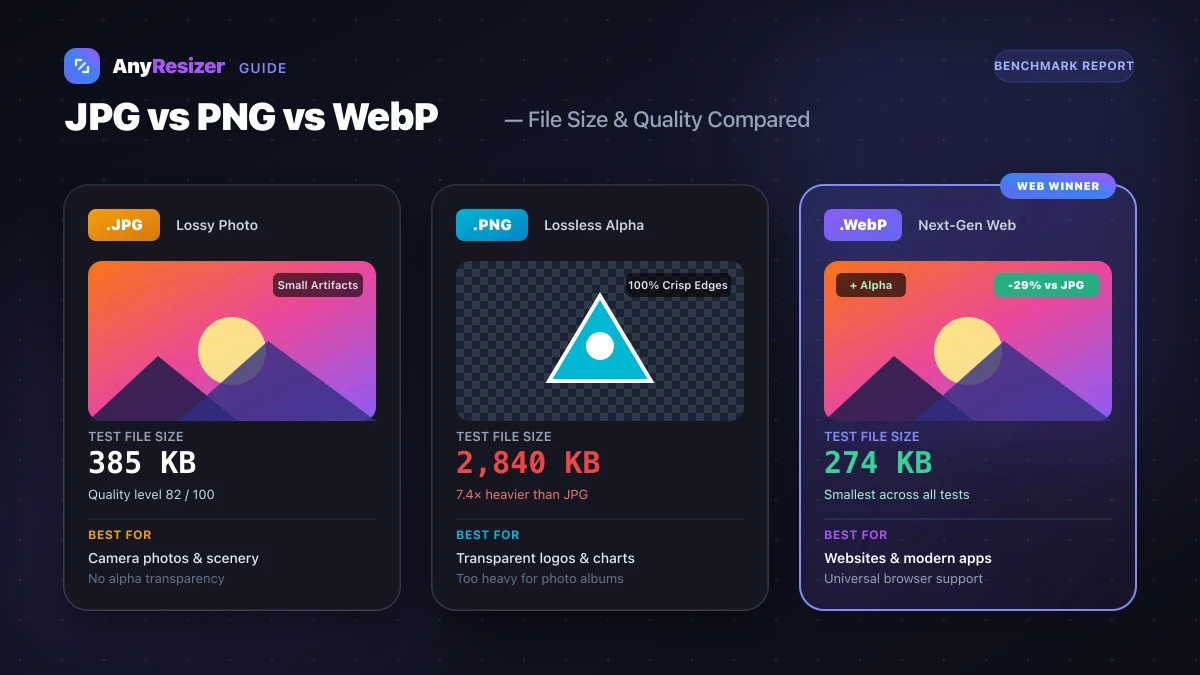
JPG vs PNG vs WebP: Which Image Format Should You Use?
Compare JPG, PNG, and WebP for photos, transparency, and website speed. See real test results and size benchmarks for all three formats.
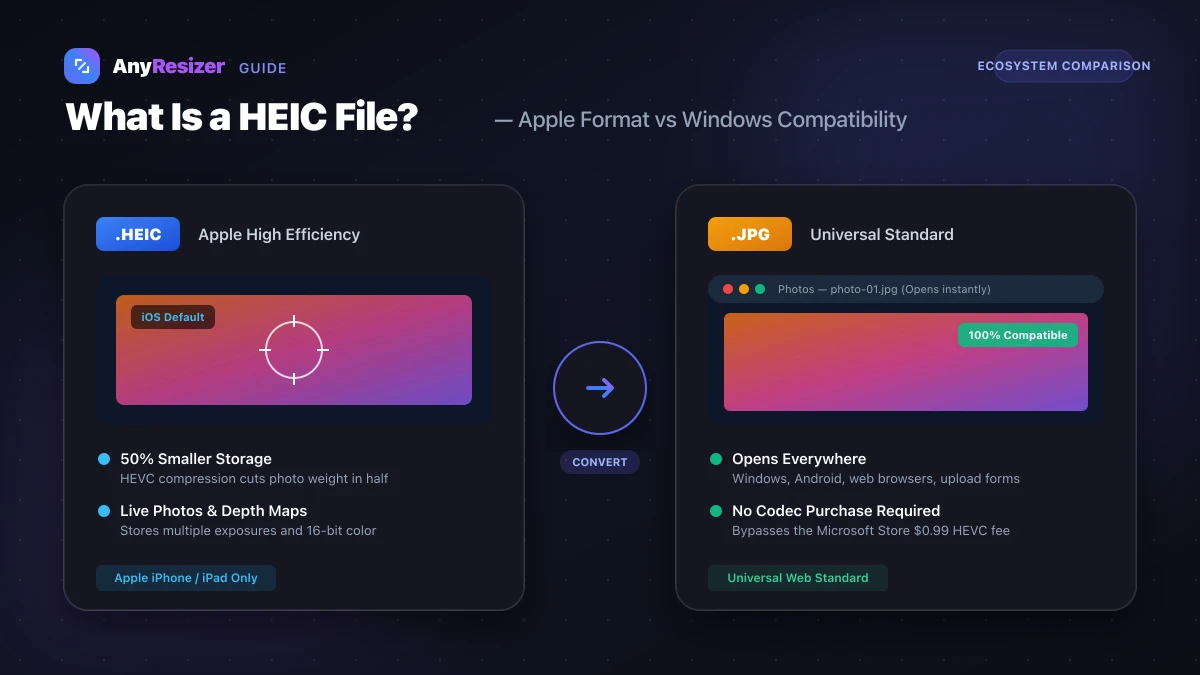
What Is a HEIC File? How to Open and Convert It on Windows
Learn what HEIC files are, why Apple uses them, why Windows can't open them by default, and how to convert HEIC to JPG for free.