
Why Your Photo Turns Sideways After You Upload It
You snap a vertical portrait on your smartphone, review it in your camera roll, and it looks perfectly upright.
Then you upload that same picture to an online job board, forum, or real estate listing, and it suddenly flips 90 degrees onto its side.
This frustrating behavior is not a bug in your phone camera. It happens because digital image files separate picture pixels from camera sensor orientation tags.
Here is why photos rotate unexpectedly when uploaded, and how to bake the correct orientation into the pixel grid permanently.
How Smartphone Cameras Record Orientation
Camera sensors inside smartphones are physically fixed in a landscape orientation.
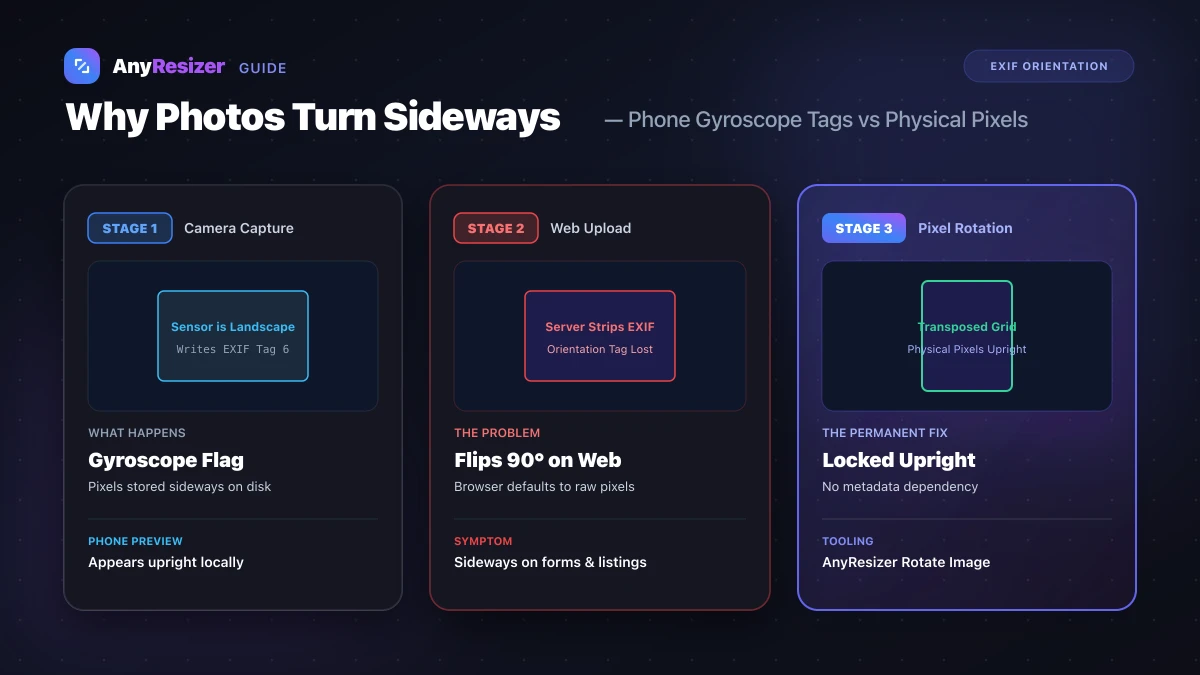
When you turn your phone vertically to take a portrait, the camera sensor does not physically rotate. Instead, a built-in gyroscopic sensor records how the phone was tilted at that exact moment.
The phone camera writes the raw landscape pixels to disk, along with a small numerical flag called the EXIF Orientation Tag:
| EXIF Value | Camera Tilt at Capture | How Raw Pixels Are Stored | Browser Display Without EXIF |
|---|---|---|---|
| 1 (Standard) | Normal landscape (horizontal) | Upright (Top / Left) | Correct |
| 3 (Upside Down) | Camera held upside down | Rotated 180 degrees | Upside down |
| 6 (Rotated 90° CW) | Standard portrait (vertical) | Rotated 90 degrees right | Sideways (counter-clockwise) |
| 8 (Rotated 270° CW) | Inverted portrait (vertical) | Rotated 90 degrees left | Sideways (clockwise) |
Smartphones and modern operating systems read this tag automatically and rotate the visual display on your screen.
If your phone captures photos in modern Apple formats, read our guide on what a HEIC file is to learn how container metadata functions.
Why Upload Forms Flip Your Photos
When you submit a picture to a website, several server-side events can strip your orientation tag:
- Privacy sanitization: Many platforms automatically delete EXIF metadata to remove GPS coordinates and sensitive camera data before publishing.
- Server-side compression: Image processing scripts often strip auxiliary headers to shave 20 to 80 KB off file weight.
- Legacy browser engines: Older web viewers and discussion boards simply do not parse CSS orientation rules or EXIF tags.
Without that numerical tag, the browser falls back to the default orientation (Value 1). The raw landscape pixels appear sideways on the page.
To understand how file weight and compression connect across devices, see our guide on how many KB is a photo.
How to Fix Sideways Photos Permanently
To guarantee your picture remains upright across every website and device, you must rewrite the physical pixel grid rather than relying on metadata tags.
When you rotate an image in your browser using an HTML5 Canvas:
- The browser decodes the image into an active memory buffer.
- The pixel array is physically transformed (transposing rows and columns).
- The exported file writes out the pixels already positioned upright, eliminating reliance on EXIF tags.
Upload your sideways photo
Drop your rotated image directly into the browser rotation tool.
Rotate to upright position
Click 90° clockwise or counter-clockwise until your picture faces the correct direction.
Download the permanent file
Save the newly encoded file. The pixel grid is now locked in an upright orientation everywhere.
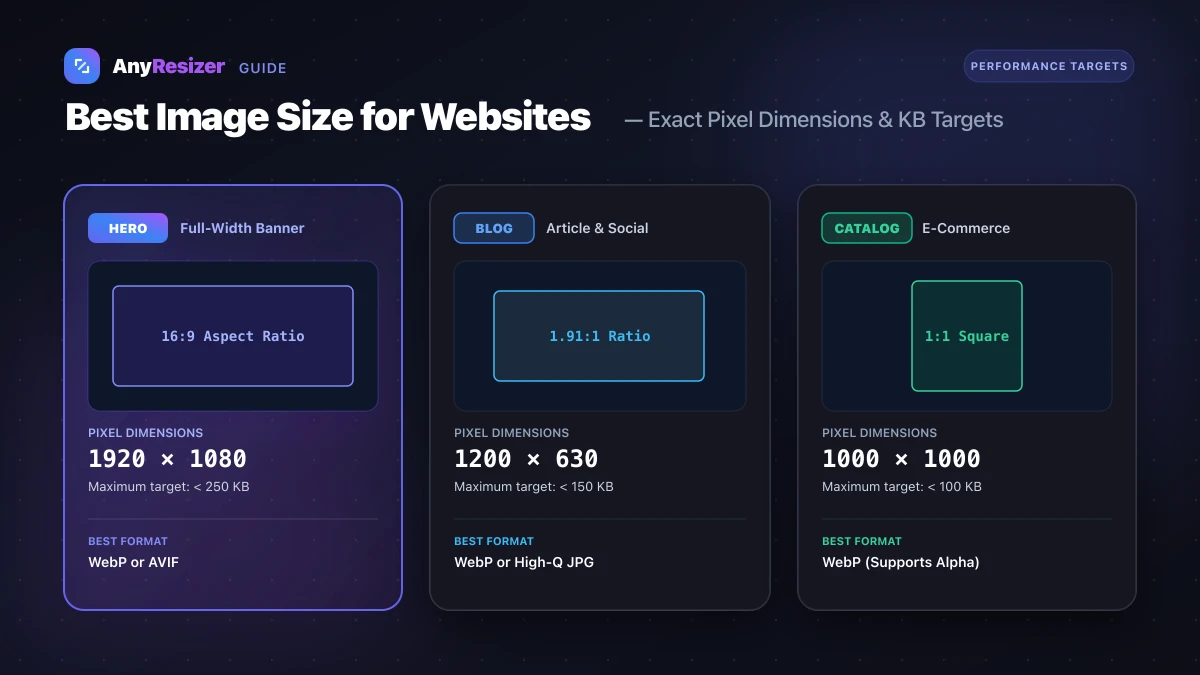
If you are preparing graphics for online publishing, check our guide on the best image size for websites for recommended dimensions. If you are submitting pictures for government records or visas, see our passport photo size in pixels guide.
Frequently asked questions

The AnyResizer editorial team benchmarks image codecs, compression ratios, and web graphic formats using in-browser WASM and Canvas engines.
Related guides

AVIF vs WebP: File Size and Browser Support Tested
Compare AVIF and WebP for image compression, decoding speed, and browser support. See measured file-size test results across 5 photos.
Best Image Size for Websites: Pixel and KB Targets
Boost page speed and SEO with recommended pixel dimensions and KB targets for website hero images, blog headers, logos, and product photos.
DPI vs PPI: What They Mean and When They Matter
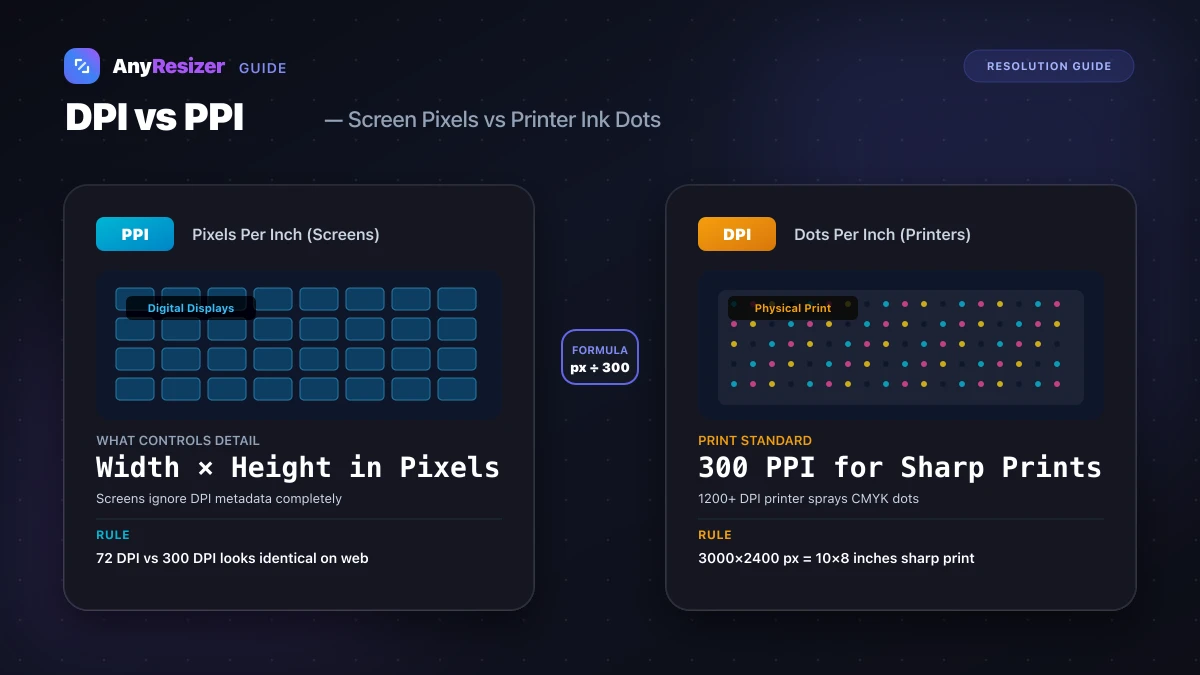
Understand the difference between DPI and PPI, why DPI doesn't affect web images, and how to calculate the right resolution for sharp photo prints.