
Lossy vs Lossless Compression: What You Lose and When It Matters
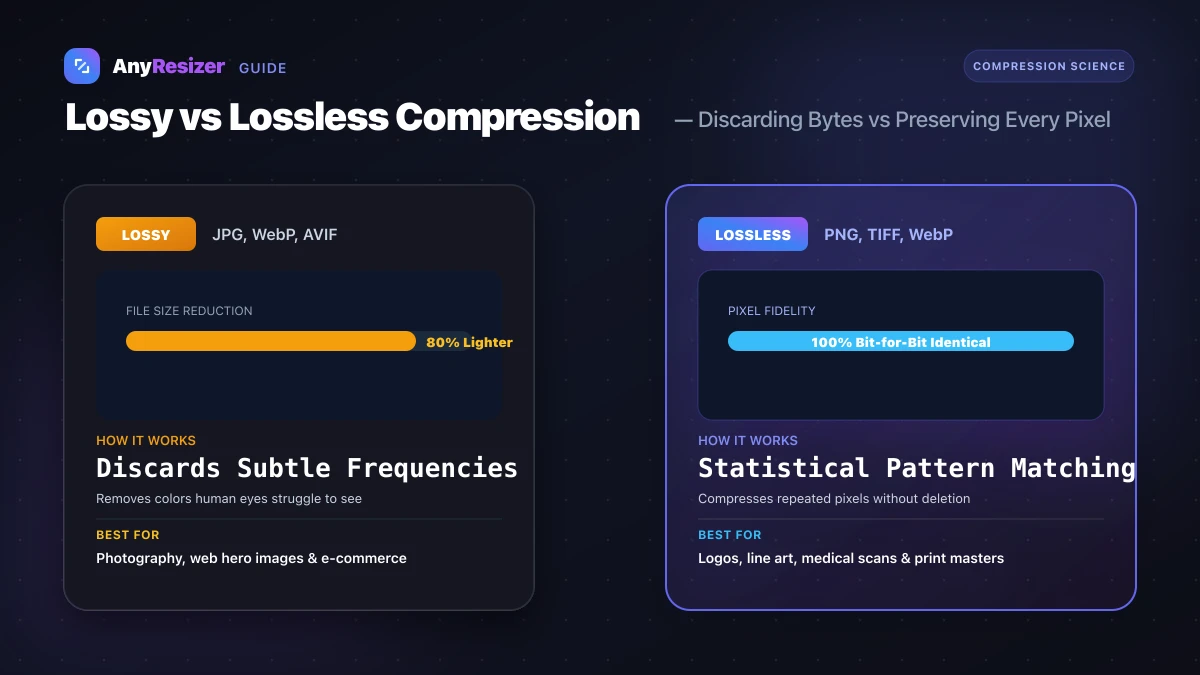
Digital images contain enormous amounts of data. An uncompressed 12-megapixel photograph requires over 36 megabytes of raw memory.
Compression makes sharing and web browsing feasible by reducing that weight down to manageable kilobyte sizes.
Here is the difference between lossy and lossless algorithms, what gets removed, and how to choose the right option for your graphics.
Side-by-Side Comparison: Lossy vs Lossless
Understanding the core trade-offs between both methods helps you avoid accidental quality loss:
| Characteristic | Lossy Compression | Lossless Compression |
|---|---|---|
| Typical Size Reduction | 70% to 90% lighter | 15% to 45% lighter |
| Pixel Fidelity | Permanently alters pixels | 100% bit-for-bit identical |
| Generation Loss | Degrades with repeated edits and saves | Zero degradation over repeated saves |
| Common Formats | JPG, Lossy WebP, Lossy AVIF | PNG, Lossless WebP, TIFF, GIF |
| Ideal Use Cases | Camera photos, blog banners, product images | Brand logos, icons, screenshots, medical scans |
To compare the actual file sizes across modern formats, explore our JPG vs PNG vs WebP benchmark and our AVIF vs WebP comparison.
What Lossy Compression Actually Discards
Human eyes are sensitive to differences in brightness (luminance), but less perceptive to subtle changes in color (chrominance).
Lossy algorithms like JPEG take advantage of this biological trait through three main compression stages:
- Color downsampling: The algorithm averages color information across blocks of four pixels while preserving sharp brightness values.
- Discrete Cosine Transform (DCT): The image converts into frequency components, separating broad color areas from sharp edges.
- Quantization: High-frequency variations that human eyes rarely notice are rounded off or discarded completely.
When pushed too far, excessive lossy compression creates ringing artifacts (halos around text) and color banding (stepped layers across smooth skies).
When to Choose Lossless Compression
Lossless compression uses algorithms similar to ZIP archives (like DEFLATE or LZ77) to identify repeated patterns in pixel data:
- Vector-like graphics and logos: Flat color areas compress tightly without blurry edges around typography.
- Master editing archives: If you plan to crop, color-grade, and re-export a graphic multiple times, always store a lossless PNG or TIFF original.
- Documents and line art: Scanned text, floor plans, and black-and-white forms must retain razor-sharp contrast.
How to Compress Images for Everyday Use
When preparing images for client emails, online portfolios, or web development:
Identify your content type
Choose lossy compression for photographs. Choose lossless compression for logos, typography, and screenshots.
Select your target format
Use modern WebP to gain the high compression ratios of lossy encoding while retaining crisp transparency.
Audit your file weight
Make sure your final file matches target size limits without visual halos.
If you are publishing graphics online, review our recommended best image size for websites for exact pixel and KB targets. You can also benchmark storage needs in our guide on how many KB is a photo.
Frequently asked questions

The AnyResizer editorial team benchmarks image codecs, compression ratios, and web graphic formats using in-browser WASM and Canvas engines.
Related guides
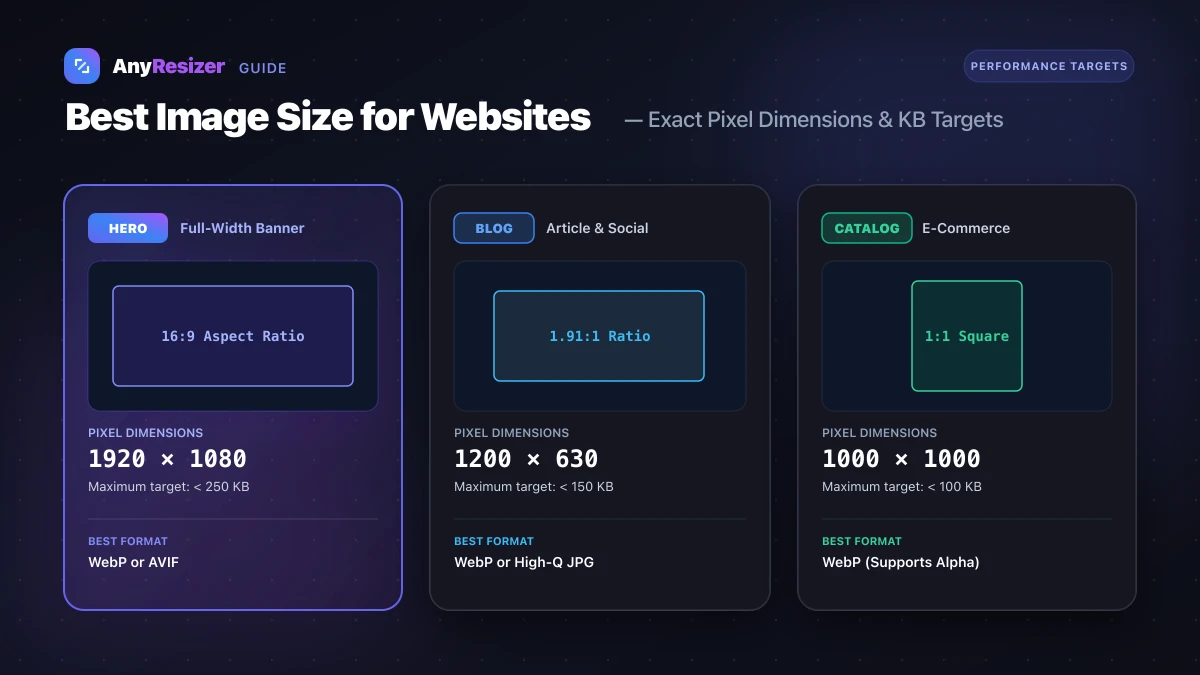
Best Image Size for Websites: Pixel and KB Targets
Boost page speed and SEO with recommended pixel dimensions and KB targets for website hero images, blog headers, logos, and product photos.
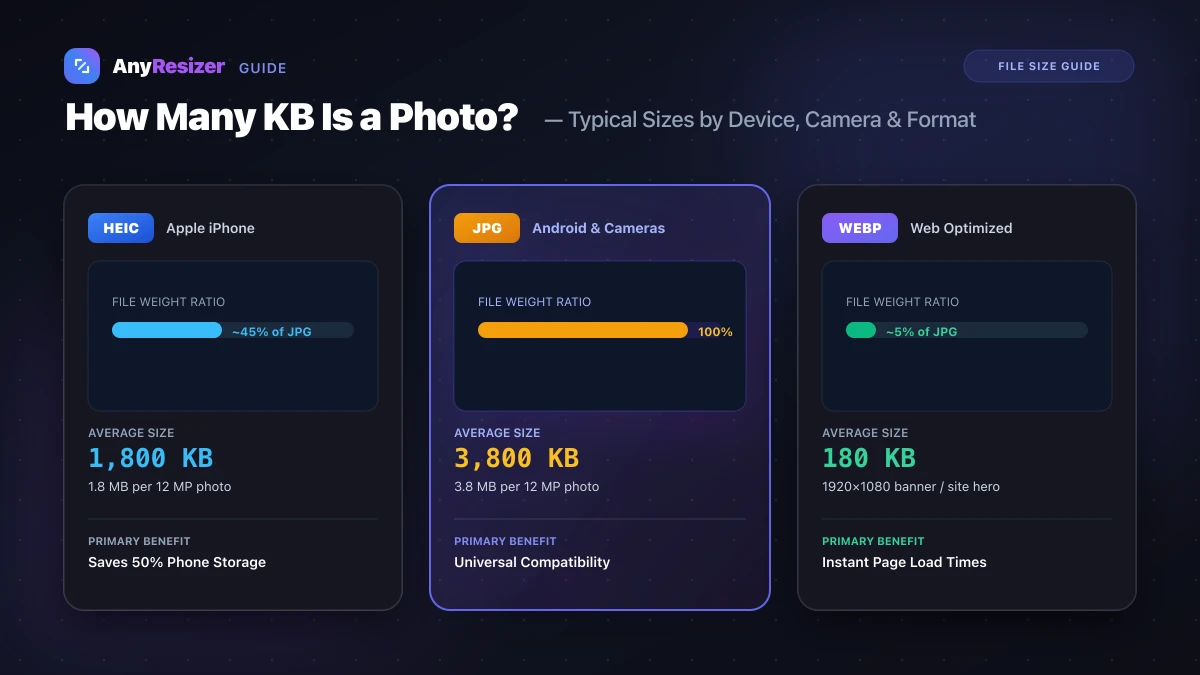
How Many KB Is a Photo? Typical File Sizes by Phone and Format
Learn the average file size of photos in KB and MB across iPhones, Androids, DSLRs, and web formats, with realistic benchmarks and size reduction tips.
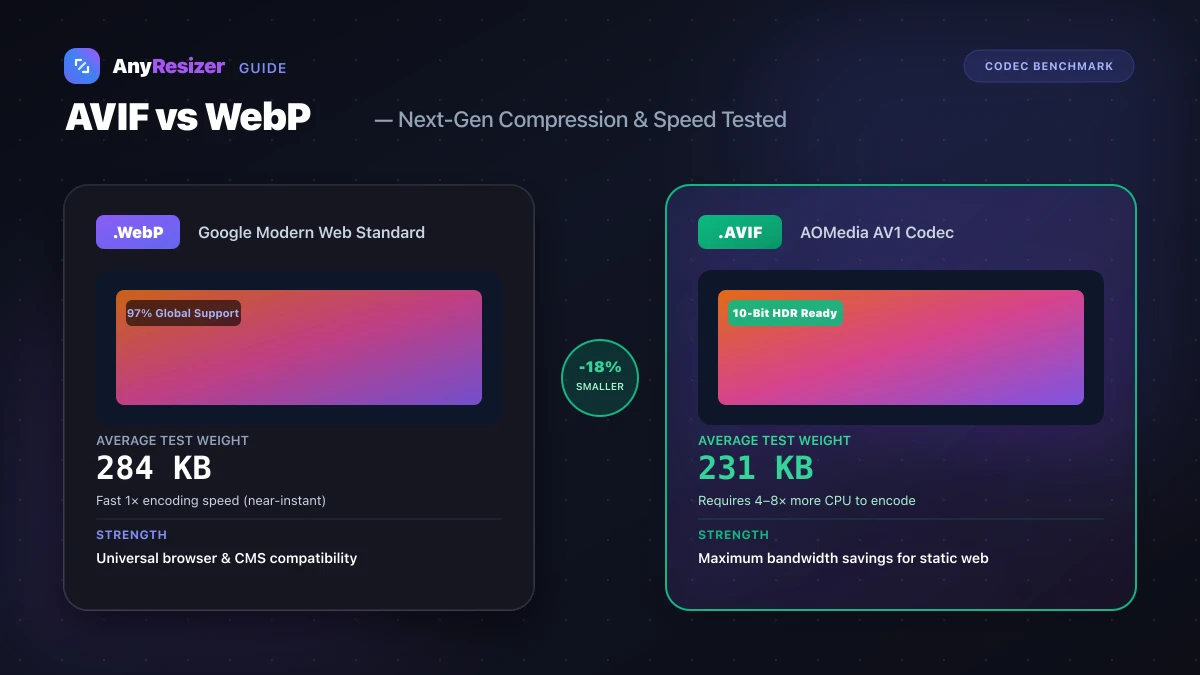
AVIF vs WebP: File Size and Browser Support Tested
Compare AVIF and WebP for image compression, decoding speed, and browser support. See measured file-size test results across 5 photos.